 Ultra Cleaner
How to Free Up Storage on iPhone
The fastest way to free up storage on an iPhone is to remove what you'll never miss: duplicate and near-identical photos, blurry shots, old screenshots and oversized videos. On a typical phone that's several gigabytes — reclaimable in minutes, without touching a single memory you care about.
Last updated: July 14, 2026
First: see what's actually using your storage
Open Settings → General → iPhone Storage. The colored bar at the top shows what's eating your space. For most people, Photos and Media dominate — which is good news, because photo clutter is the easiest thing to clean safely.
9 ways to free up iPhone storage
1. Delete duplicate and similar photos
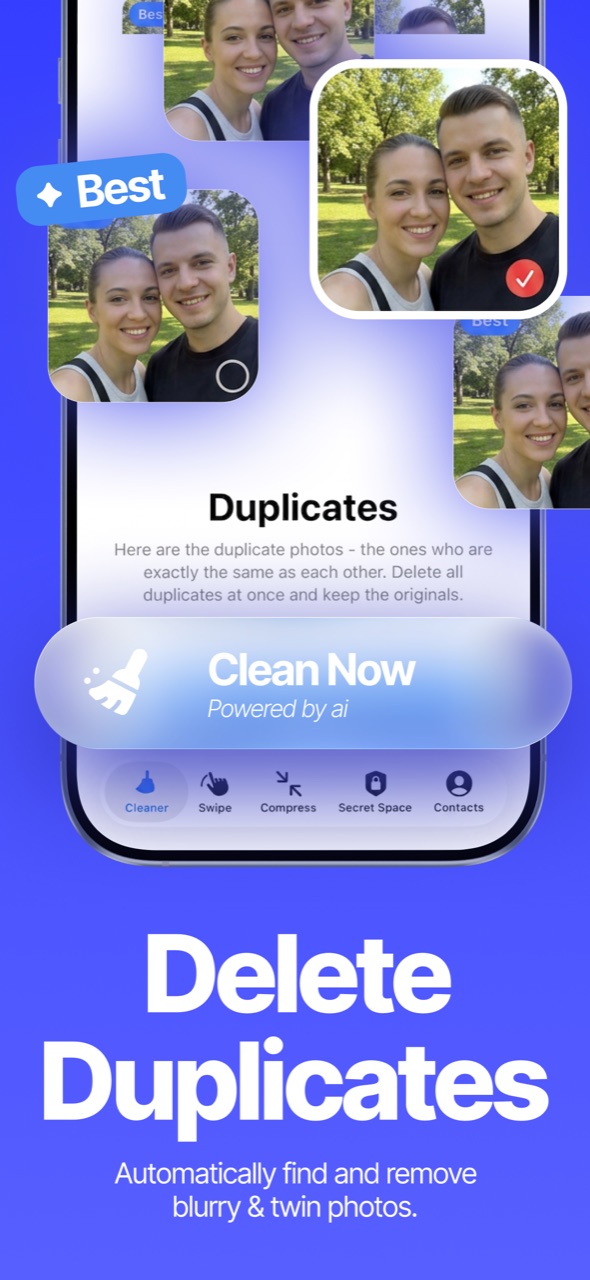
Burst shots, retakes, and photos saved twice quietly pile up for years. Finding them manually across thousands of photos is hopeless — use a scanner that groups them and keeps the best copy. That's exactly what Ultra Cleaner's Smart AI scan does: it groups duplicates and near-identical shots, pre-selects everything except the sharpest copy, and cleans in one tap. Full walkthrough: how to delete duplicate photos on iPhone.
2. Sweep out blurry photos and old screenshots
Blurry photos and two-year-old screenshots of boarding passes serve nobody. Ultra Cleaner detects both as separate categories so you can clear them in bulk — see how to delete blurry photos.
3. Compress your largest videos
A single minute of 4K video is roughly 400 MB. Re-encoding old videos at a smaller size often recovers more space than everything else combined. Guide: how to compress videos on iPhone.
4. Empty "Recently Deleted"
Deleted photos sit in Photos → Albums → Recently Deleted for 30 days, still counting toward storage. After a big cleanup, empty it to make the space real (only once you're sure!).
5. Mass-review your camera roll month by month
For everything a scanner can't judge — the 14 near-identical brunch photos only you can rank — swipe review is the fastest human-in-the-loop method. Swipe left to delete, right to keep: how to mass delete photos.
6. Offload unused apps
Settings → App Store → Offload Unused Apps removes rarely-used apps but keeps their data, so reinstalling restores them exactly as they were.
7. Clear Safari's cache
Settings → Safari → Clear History and Website Data. Usually a few hundred megabytes, occasionally more.
8. Prune huge Messages attachments
Settings → General → iPhone Storage → Messages lists Photos, Videos and GIFs sent/received by size — delete the big ones you don't need.
9. Turn on iCloud Photos with "Optimize iPhone Storage" (optional)
This keeps small previews on the phone and full originals in iCloud. It helps, but it's a paid subscription for most libraries and doesn't remove the actual clutter — clean first, then decide if you still need it.